Building software
On Turning a Kindle into a Dashboard
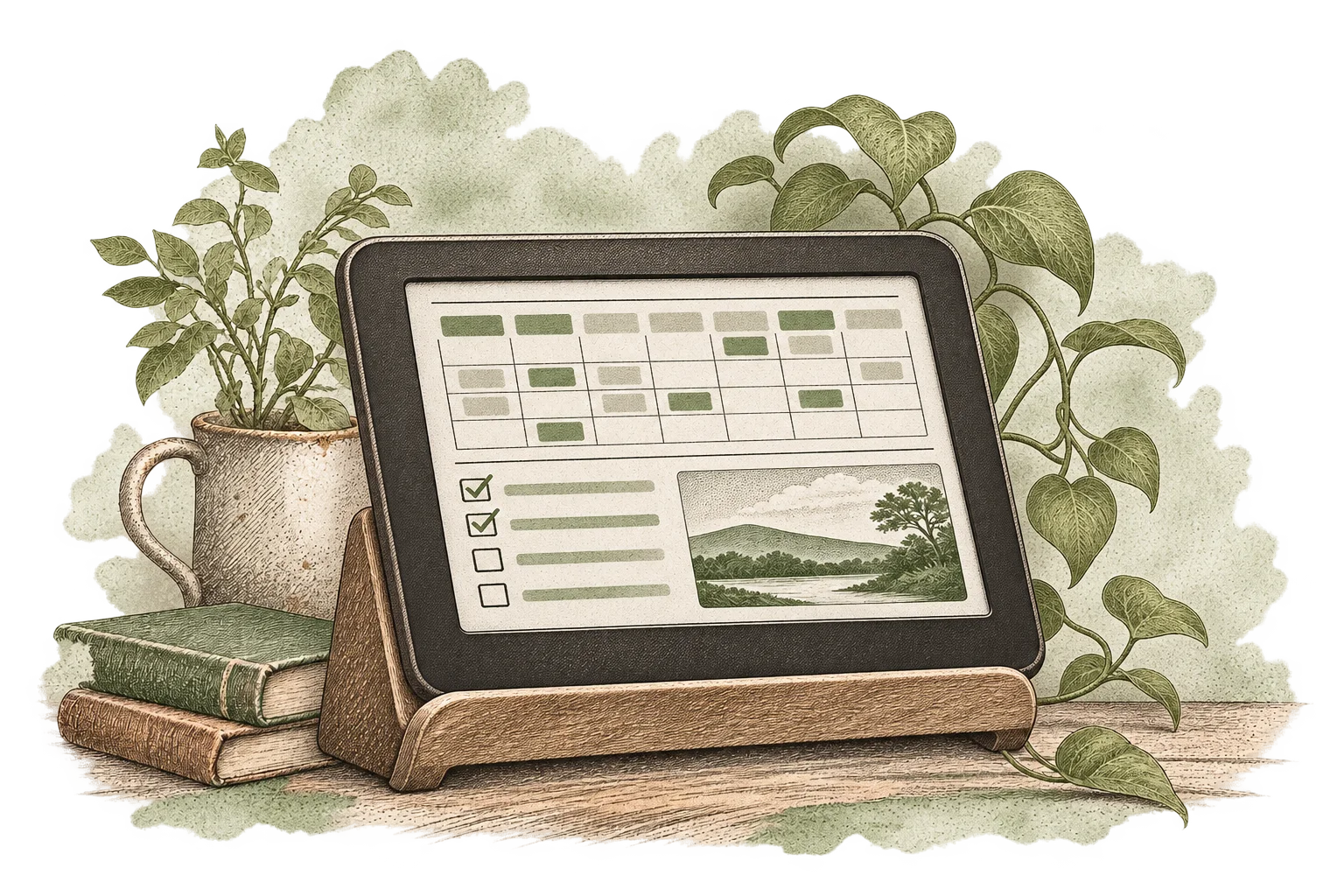
I turned an old Kindle into a household dashboard. It shows calendars, tasks, a photo, and a quote. The information comes from a server; the Kindle wakes periodically, downloads an image, and displays it as its sleep screen.
The arrangement sounds simple. Much of it is. The interesting work was getting a sleeping device to wake its network, update its display, and go back to sleep without losing the last useful screen.
One image is the interface
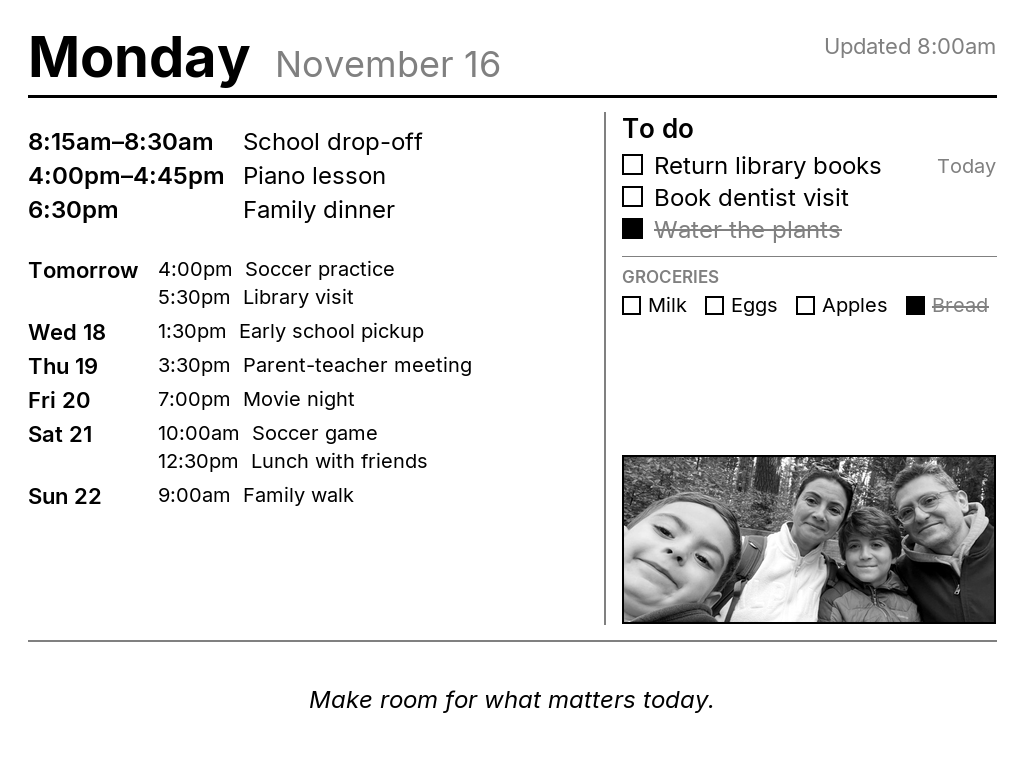
The first device was a Paperwhite 2 with a 758 × 1024 panel. Rather than ask its browser to render a webpage, I generate a grayscale PNG at the exact panel dimensions.
Google Calendar supplies events through private iCal feeds. Todoist supplies tasks. A FastAPI service collects the data, and Pillow draws the layout. Nginx serves the resulting image to the Kindle.
iCal feeds + Todoist + photo + quotes
                        |
                 FastAPI + Pillow
                        |
                 grayscale PNG
                        |
                   Nginx / HTTPS
                        |
               Kindle sleep screen
The layout is drawn in landscape at 1024 × 758, then rotated into the panel's portrait frame. A second board can use a different resolution and template. Dimensions, rotation, calendar sources, and task project belong to the board configuration rather than to the device script.
That keeps layout changes on the server. Adding another calendar does not require installing another program on the Kindle. The device still asks for one file.
Getting access to the device
I used WinterBreak to jailbreak this Paperwhite. The setup went through the Mesquito launcher, then installed USBNetwork for SSH access and the linkss screensaver hack for custom sleep images.
WinterBreak worked on my Paperwhite 2 running firmware 5.12.x.x. The maintainers list 5.18.1 as the first unsupported firmware version. If yours is older, check the guidance for your specific Kindle model in the WinterBreak documentation.
KUAL, a launcher often used for Kindle extensions, failed on my first device with an authorization error. I did not need it for this setup. A bootstrap script installed the packages, after which SSH was enough to manage the dashboard.
Several smaller details mattered. Hidden jailbreak files had to survive the copy from the Mac. macOS resource-fork files could confuse the screensaver directory. The Kindle's non-login shell also omitted /usr/sbin and /sbin from its path, making installed commands appear to be missing.
The device scripts therefore begin with an explicit path:
export PATH=/usr/local/bin:/usr/bin:/bin:/usr/sbin:/sbinIt is an unremarkable line until a working command disappears over SSH.
Waking the Kindle is only half the job
The Kindle exposes power events through lipc, its local interprocess communication interface. My loop listens for those events rather than checking the device state continuously.
Before suspension, it sets a real-time-clock alarm. After waking, it starts a fetch. When the device enters the screensaver, it repaints the image. This is a shortened excerpt of the event loop; the fetch helper and startup handling are omitted:
lipc-wait-event -m com.lab126.powerd \
  readyToSuspend,wakeupFromSuspend,outOfScreenSaver,goingToScreenSaver |
while read ev; do
  case "$ev" in
    readyToSuspend*)
      lipc-set-prop -i com.lab126.powerd rtcWakeup "$INTERVAL" ;;
    wakeupFromSuspend*)
      fetch wake & ;;
    outOfScreenSaver*)
      fetch button & ;;
    goingToScreenSaver*)
      ( sleep 3; /usr/sbin/eips -f -g "$SS" ) & ;;
  esac
done
INTERVAL is 3600 seconds in this setup. The fetch helper uses a nonblocking flock, so closely spaced wake events do not start overlapping downloads. An Upstart job starts the loop with the Kindle GUI and restarts it if it exits.
Then came the less obvious problem: an RTC wake left this Kindle in its Screen Saver state, where Wi-Fi did not connect. Waking through the power button moved it to Active, and Wi-Fi connected.
The workaround checks the state after an RTC wake. If the device is still in Screen Saver and Wi-Fi is unavailable, it delays suspension and simulates a power-button press. After the download, it presses again to return to sleep.
lipc-set-prop -i com.lab126.powerd deferSuspend 120
lipc-set-prop -i com.lab126.powerd powerButton 1
Those two commands are only the transition. The full script also waits for connectivity, limits the download time, and remembers whether it forced the device awake. It should not put a device back to sleep just because a person woke it manually.
There is a visible compromise: the home or passcode screen can appear briefly during the hourly refresh. I have not eliminated that transition. It is part of the current implementation, not an animation I designed.
Keep the last useful screen
The download goes to a temporary file on the same filesystem as the screensaver. Only a successful, nonempty download replaces the previous image. The core pattern, simplified from the script, is:
if curl -fsS --max-time 20 -o "$TMP" "$URL" && [ -s "$TMP" ]; then
  mv -f "$TMP" "$SS"
else
  rm -f "$TMP"
fi
The rename prevents the screensaver from reading a half-written download. A failed request leaves the old file in place. This checks transfer success and file size; it does not decode the PNG to validate its contents.
The destination name matters too. linkss renames screensaver files to names such as bg_ss00.png. Updating a different filename would not necessarily update the screen being displayed. Even after replacing the right file, the screensaver could show a cached image. Calling eips -f -g when entering the screensaver handles that case.
The server follows a similar principle. Each board has cached source data, with the last successful values persisted to disk. When cached data exists, refreshes can happen in the background while the server returns a snapshot. An upstream failure does not have to erase the calendar.
Old information still needs to identify itself. The dashboard marks sources stale after two hours without a successful update. A separate heartbeat checks source health and whether each board's image has been fetched, then sends failure and recovery notifications through Telegram.
An e-ink display can look perfectly healthy while showing yesterday's information. A readable screen and a functioning system are different things.
The calendar is easier than the recurring task
Combining iCal feeds means handling recurrence and time zones before drawing anything. The dashboard shows today and the following six days, with later days shortened when space runs out.
Todoist introduced another wrinkle. Completing a recurring task advances its next due date, so looking only at open tasks does not fully explain what was completed today. The implementation also reads completion activity. It can keep a recurring task struck through for the rest of the day, instead of immediately showing tomorrow's occurrence as unfinished.
These details are easy to miss in an attractive mockup. I keep empty, busy, and overflow fixtures for previewing the layout. They make it possible to inspect wrapping and truncation without changing the real calendar or tasks.
A small device with a small responsibility
Each board has a secret token URL. The backend validates the token; Nginx rate-limits image requests. Administrative previews sit behind basic authentication. The token is a credential, so examples and screenshots should never contain a real one.
The implementation separates three responsibilities: collecting information, drawing it, and displaying it.
That separation is what I would carry into another small display project. Give the device a format it can handle reliably, make failure leave something useful behind, and check freshness independently of whether the screen looks good.
Building with a coding agent
Most of this project was done with a coding agent. The work spans a server, an image renderer, and a device with its own power-management behavior. An agent can help connect those parts, but the result still needs to be checked on the actual Kindle. A successful download alone does not tell us whether the screen changed or the device went back to sleep.
The prompts below are samples, not a transcript of the prompts I used or a complete installation guide. Replace the placeholders with your setup. Each asks for a small, checkable result before moving to the next part.
Jailbreak and device access
Help me assess whether my own Kindle can run a custom dashboard. First ask for its exact model and firmware, then check the maintained jailbreak documentation for compatibility. Explain the prerequisites, risks, and recovery options before proposing device changes. Do not assume instructions for another Kindle apply. Once access is available, help me set up SSH and a custom sleep image. Keep credentials out of examples, and verify each step on the device.
Server and rendering
Build a FastAPI service that renders a grayscale dashboard with Pillow for a [width × height] display. Start with mock calendar events and tasks, then add configurable data sources. Keep collection separate from rendering. Preserve last-good data during upstream failures and show when it is stale. Provide empty, busy, and overflow previews. Keep source credentials out of the image and shared code. Show me a local PNG before proposing deployment.
Waking, fetching, and displaying
Inspect the power events available on this Kindle. Build a periodic fetch loop that avoids overlapping downloads, waits for Wi-Fi with a timeout, and replaces the sleep image only after a successful download. Test manual wake, timed wake, unavailable Wi-Fi, and server failure separately. Preserve the old image on failure. Record whether the script woke the device so it only restores sleep when appropriate. Verify the screen itself, not just the downloaded file.
Uploading and releasing
Read the project's deployment runbook and use its existing server and device scripts. Keep server updates and Kindle updates separate. Before uploading, show the changed files, run the relevant checks, and explain how to restore the previous working setup. Ask before the first live deployment. After release, check the service response, source freshness, and a real device refresh. Do not treat a successful upload as proof that the dashboard works.
The useful part of these prompts is the verification they ask for: an image to inspect, a failure to exercise, and a device behavior to observe.
What failed during setup, and what I learned
These are condensed field notes from my devices, not a general compatibility guide. Some failures happened during package installation or display setup, after the jailbreak itself had succeeded.
Two installers ran at once
The transfer daemon retried the bootstrap command. Two installer processes collided, leaving USBNetwork partly installed. A guard against duplicate runs was necessary before retrying the installation.
The launcher disappeared after one use
Amazon's Store page replaced the cached Mesquito launcher. Restoring the launcher files was necessary before another Store-based launch. A missing launcher did not mean the jailbreak had disappeared.
KUAL failed its authorization check
The first device reported that it was not authorized as a test Kindle. Another launcher variant opened without a visible result. I stopped treating KUAL as a prerequisite and used the bootstrap script to install the packages. Once SSH worked, I could manage the dashboard without it.
Files were present, but the device did not use them
Hidden jailbreak files could be missed during copying. macOS also created resource-fork files beginning with ._, which the screensaver could mistake for images. Later, linkss renamed the real image at boot. Checking the actual files on the device mattered more than seeing a successful copy on the Mac.
A wake event did not mean Wi-Fi was ready
The timed wake left the first device in its screensaver state, where Wi-Fi did not reconnect. A manual wake behaved differently. The working loop checked the power state, temporarily brought the device to its active state, waited for a connection, and restored sleep after the fetch.
The second Kindle had a different starting point
After a factory reset, Amazon refused registration on the second device's old firmware. The notes record a plan to update it before retrying registration, rather than a confirmed successful fix. Resetting also erased the staged files. The first device's successful setup was useful evidence, but it was not a guarantee for the next one.
Where I looked for evidence
The bootstrap script writes /mnt/us/dash/bootstrap.log. The package installer writes extensions/MRInstaller/log/mrinstaller.log under the Kindle's user storage. Power and network events appear in /var/log/messages; on the first device, that log rotated frequently, so I needed to inspect it soon after a failure.
This section summarizes my field notes; it is not a set of retained raw log excerpts.